Monitoring Student Progress
You can view your student's progress in your course in several areas including the User Progress tool, Classlist/Engagement, or via the Content Reports Tool. These tools allow you to monitor your student’s progress and activity in your course, they can also help you to identify at-risk students.
There are three ways to view student progress. See below to explore each option.
What to do if you Identify an At-Risk Student
It is important to intervene early. If you notice a student hasn't logged into the course, visited content or posted to discussions, reach out to the student right away. Research shows that instructor engagement is a primary factor in student success, so try emailing the student to see if you can clarify or provide additional insights to help them get started. In addition, you can utilize Retain to text the student or issue a progress report so an academic advisor or success coach can reach out to assist them.
#1 The User Progress Tool
The User Progress tool allows both instructors and students to monitor student progress in the course. You can view each student’s log-in history, grades, discussion responses, dropbox submissions, quiz grades, and more – all in the same place. You can also track how much of the course content students have viewed and the date and time they viewed it. Watch the video below to learn how to utilize the user Progress Tool.
Video Link: Understanding the Class Progress Page
#2 The Classlist: Class Engagement
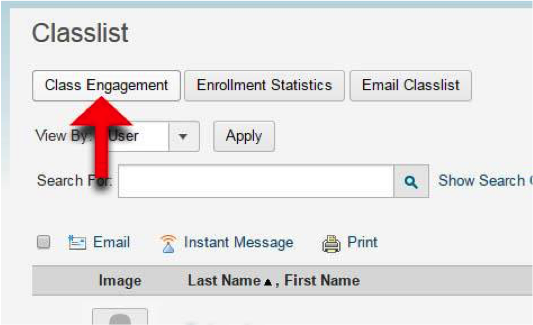
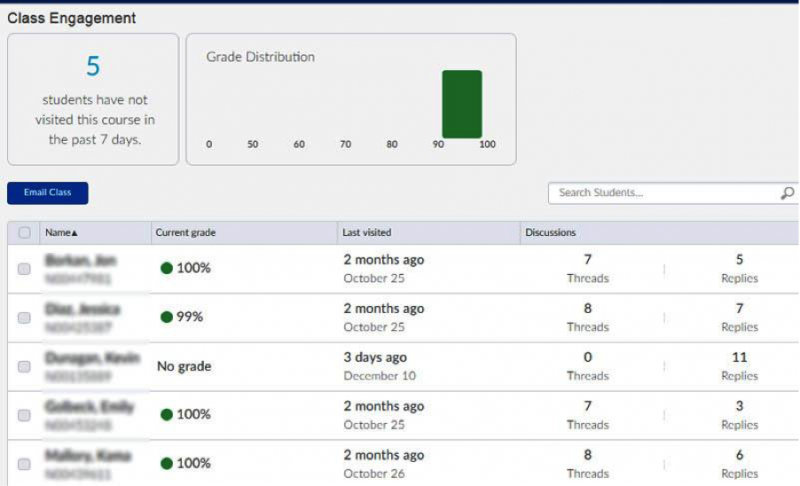
This area is an easy way to identify when students have not logged in for awhile. In the Classlist tool - click on the Class Engagement button, (see first image below. Clicking this button will take you to a page where you will see the last time your students visited the course, your students current grades, and the number of student discussion thread postings and replies (see second image below).
#3 Content Reports Tool
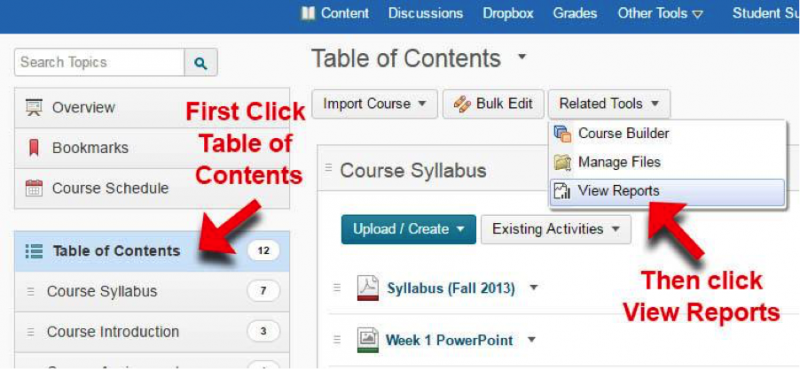
The Content Reports tool is one way to check how many times students are referring to specific items in your content such as the course syllabus. The content reports area shows how many times students visited a content topic, and how much time they spent on that topic. Note that time spent doesn't necessarily reflect the amount of time the student was engaged with content, the student may have walked away from their computer or taken a phone call. You should use the content statistics area to provide you a general overview of your students progress through course content, and an idea of what content your students are visiting frequently.
The image below shows how to access the Content Reports Tool.