
AVRO Mobile Quick Start Guide
What is AVRO Mobile?
AVRO Mobile is a mobile app that allows you to carry your NLU Virtual ID on your phone. Use it to present your digital ID, access campus readers, and manage printing—all in one secure app!
Installation and Set Up
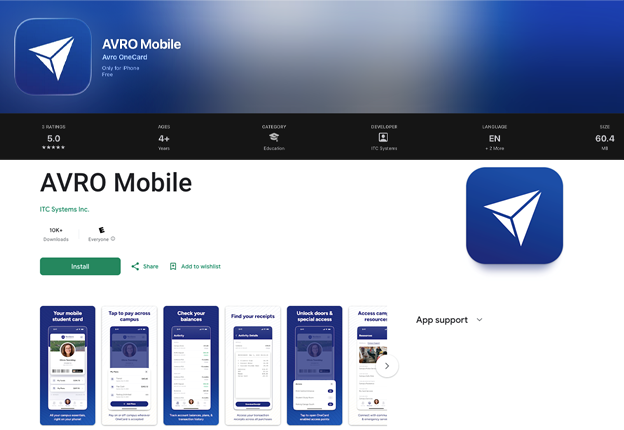
Step 1: Download the App
- iOS: Search for AVRO Mobile in the Apple App Store
- Android: Search for AVRO Mobile in the Google Play Store
Open the app once installed.
Step 2: Sign In & Activate
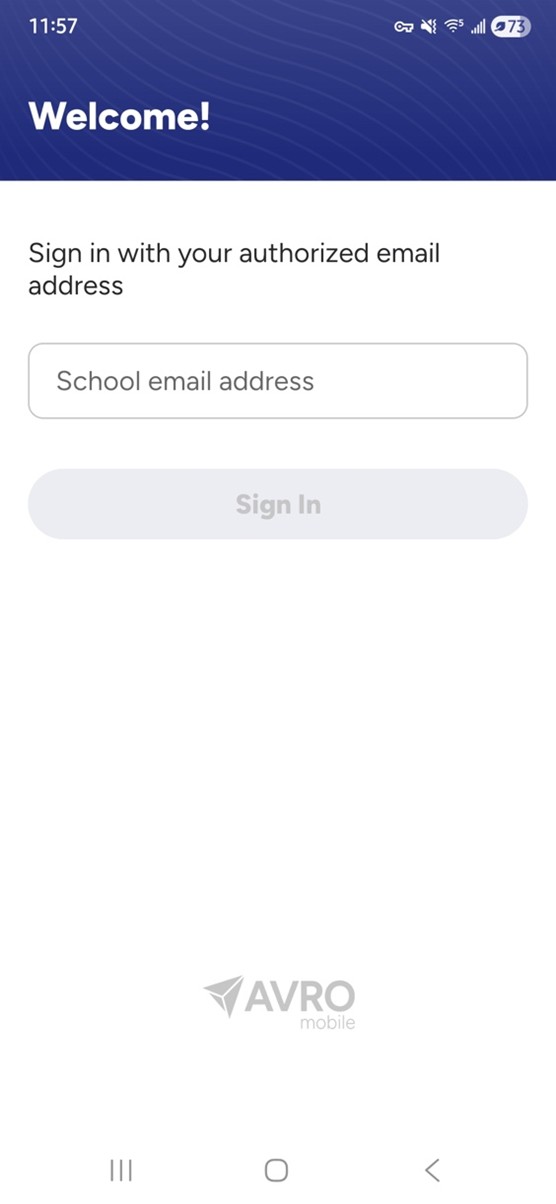
- Sign in using your NLU email address ending in
@nl.edu or @my.nl.edu - Check your email for “Your Activation Link”
- Select Start Activation
- Select Start Activation, then Complete
Activation in your browser - When you see “Account Verified”, return to the app
Step 3: Accept Permissions & Security
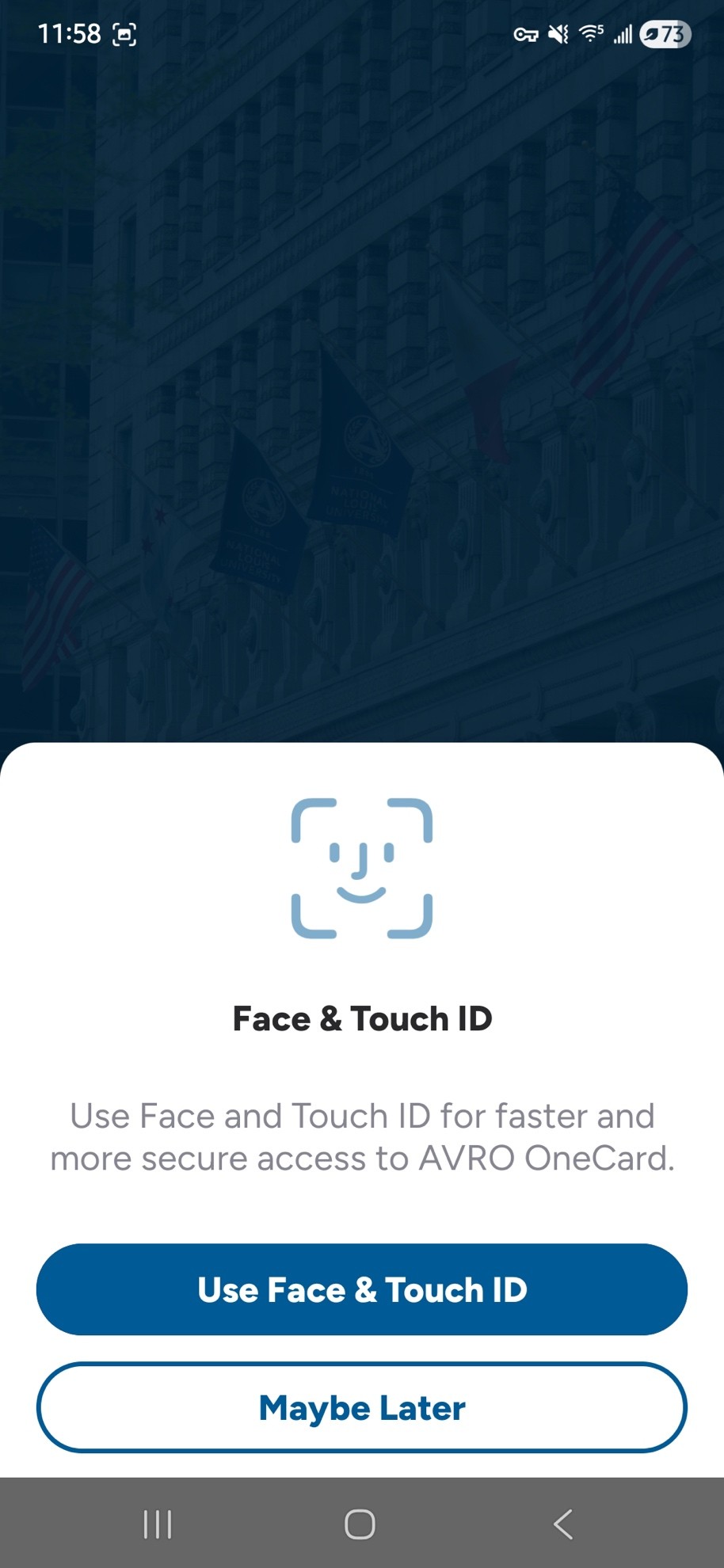
- Accept the Terms & Conditions
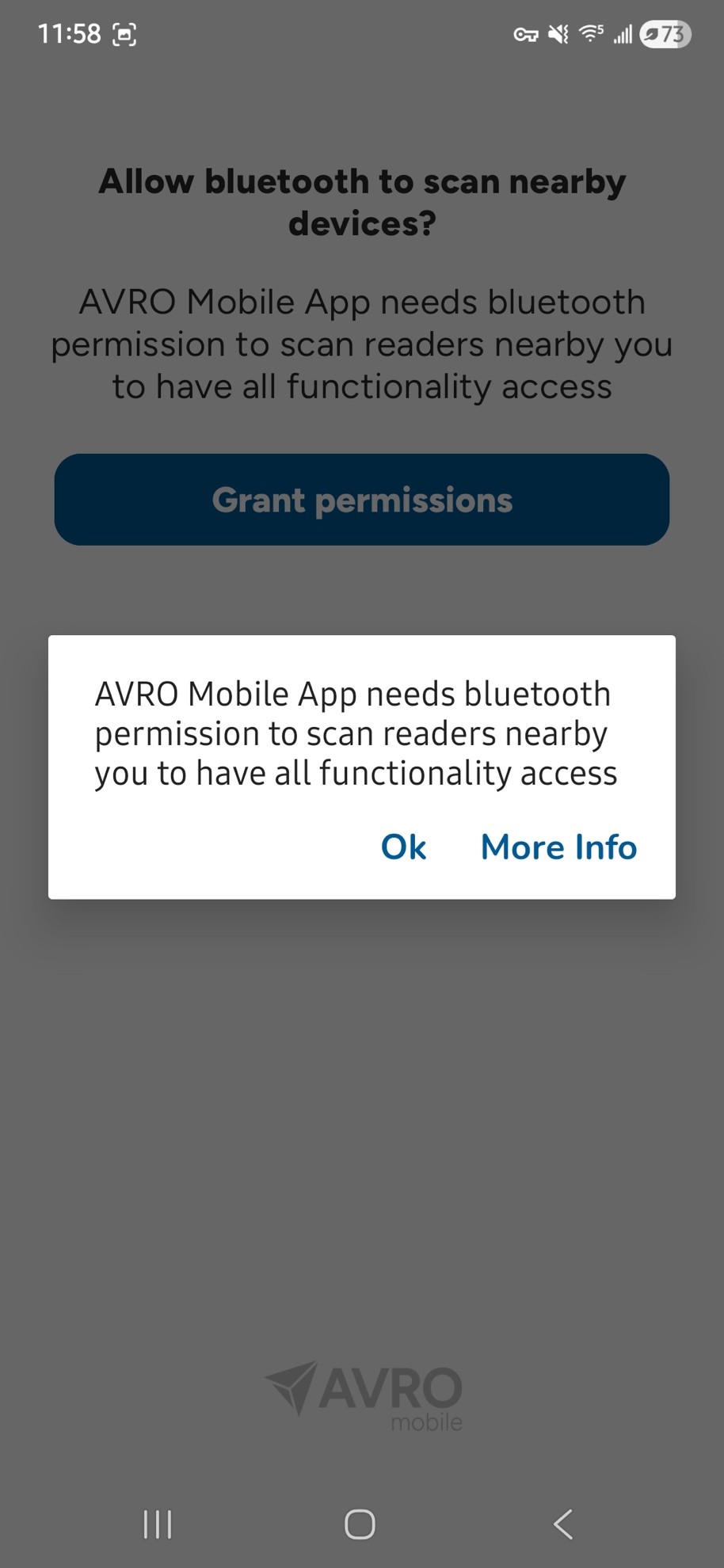
- Allow Bluetooth and Location access
- Ensure Bluetooth or NFC is turned on for tap/scan functionality
Step 4: Review Features
Available features include:
- Digital student or staff ID
- Campus reader access
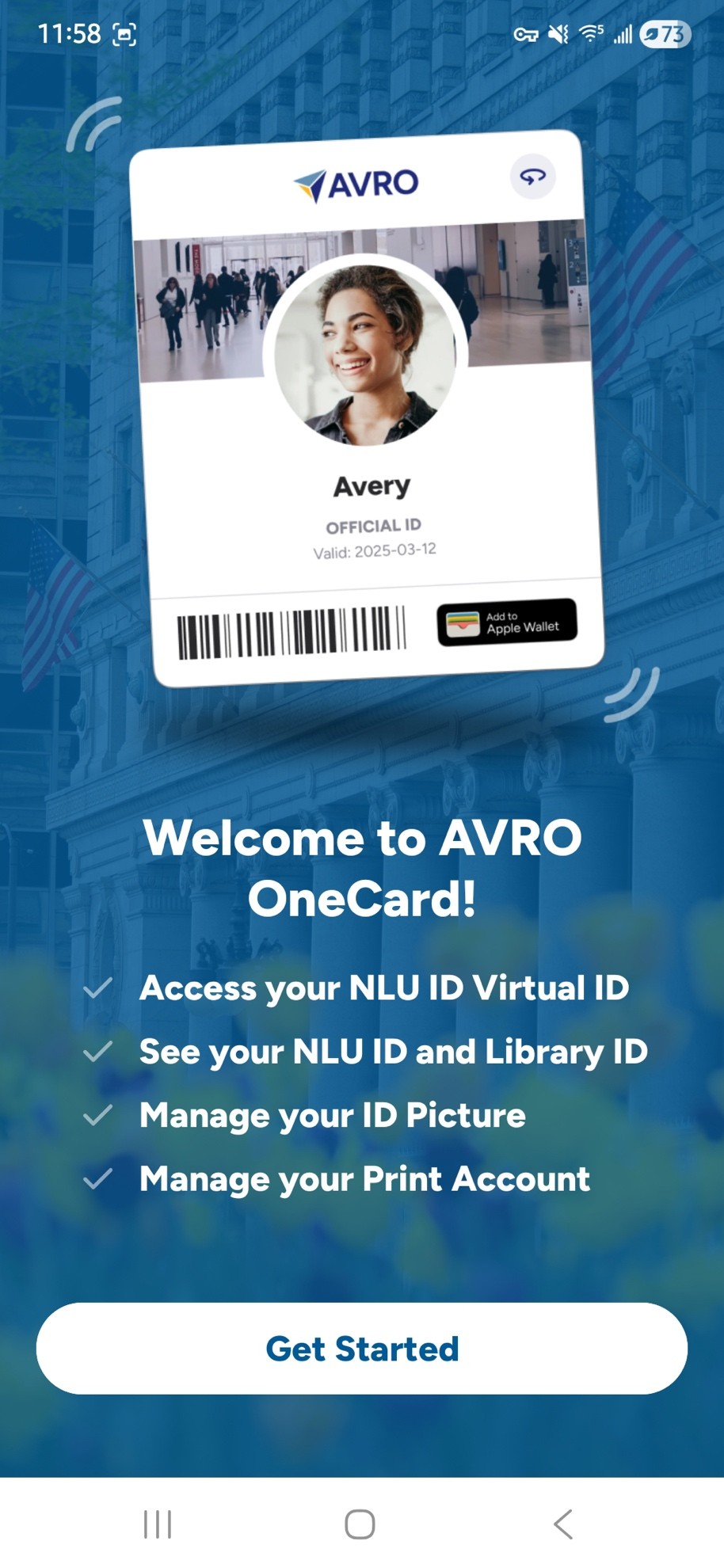
Tap Get Started to finish set up.
Step 5: Add to Wallet (Optional)
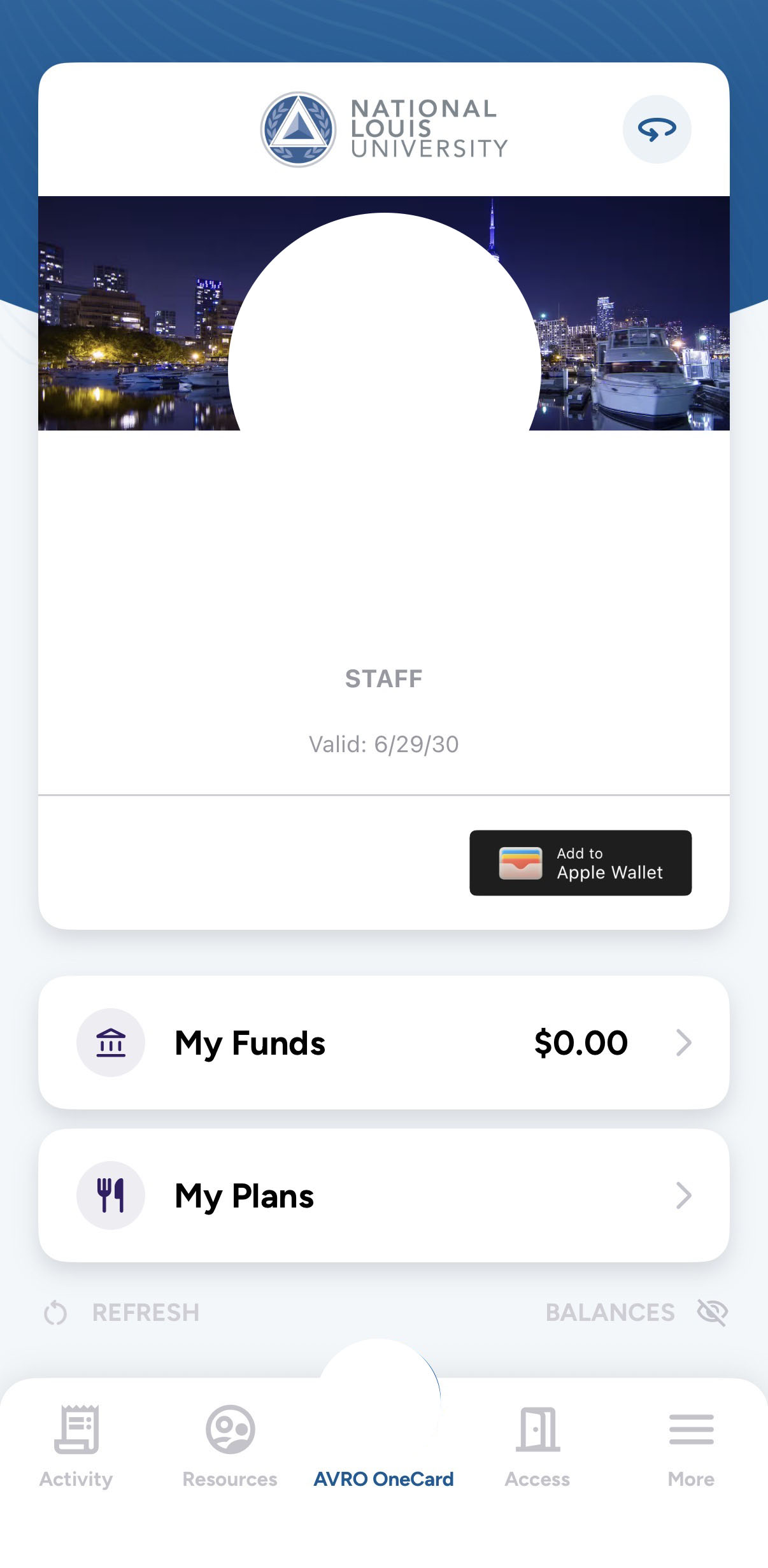
- Click the Add to Wallet button in the bottom right corner of the ID tile on the home screen
- Note: Please allow up to 24 hours from account activation for the Add to Wallet button to appear
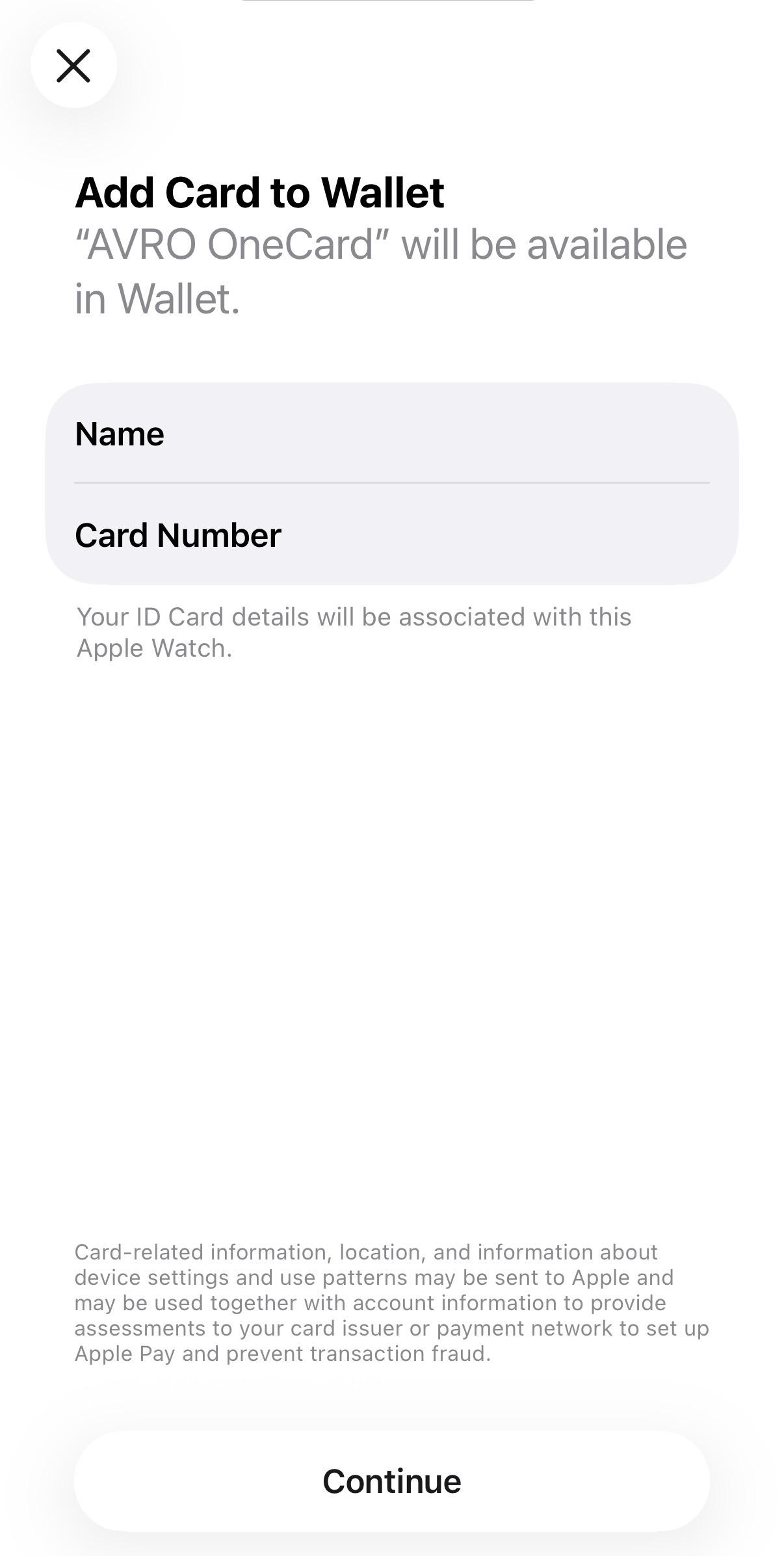
- On the next page, tap the Continue button
- Your AVRO ID will now be available in your phone’s wallet
Scan in Using Apple Wallet (iPhone Users)
- Open Apple Wallet
- Double press your phone's side button (iPhone models without a home button)
- Double press your phone's home button (iPhone models with a home button)
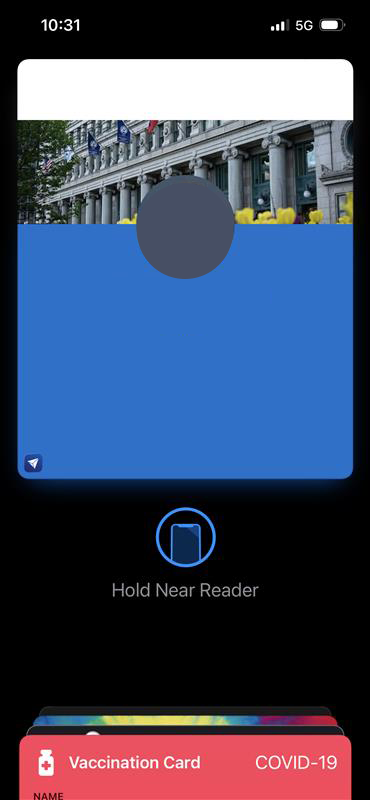
- Select the AVRO tile from the available wallet apps
- Hold your phone to the card reader.
Need Help?
Contact the front desk or IT at helpdesk@nl.edu
