
Training & Resources

The Learning & Information Technology Services (LITS) Department at National Louis University comprises of multiple teams of specialized technology areas to provide you with the best quality care. On this page, you will find additional resources to specific software and/or systems that we use university-wide.
Password Reset & Username Recovery Guides
Password Reset
If you have forgotten your password or are having trouble logging in, then resetting your password can help regain your access back into the account. To reset your password you follow the instructions below:
-
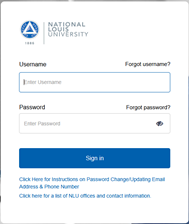
Navigate to the NLU portal at my.nl.edu. Click "Forgot password?" above the password input.
-
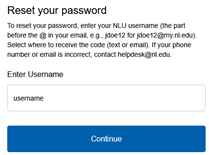
On the reset your password page, enter your username in the Enter Username input and click the Continue button.
-
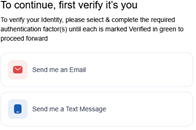
Select either email or text message as your preferred method to receive a verification code.
-
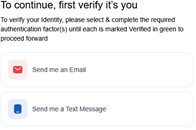
Once you receive your verification code via your preferred method, enter it on the verification page.
If you need additional assistance, please contact the Help Desk at helpdesk@nl.edu
Guide download: Password Reset Guide
Forgot User name
-
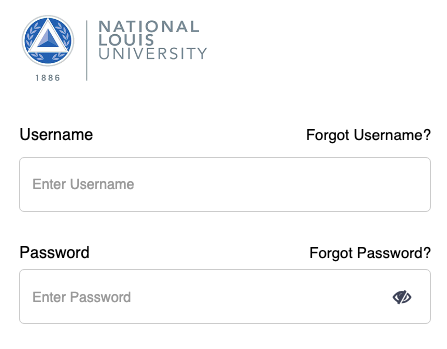
If you forgot your username, navigate to the NLU portal and select the “Forgot username” option.
-
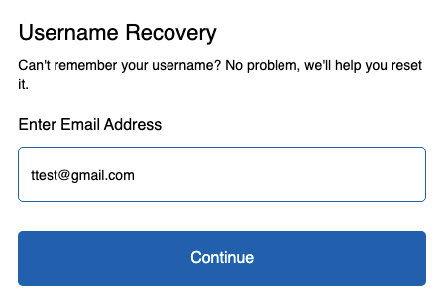
You will then see an option to add an email. Please input either your student email or your last associated personal email with NLU.
-
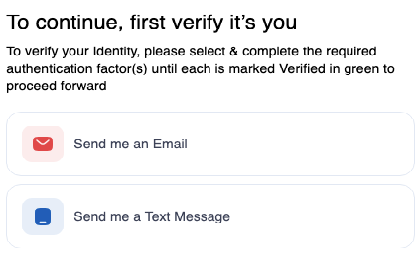
Afterward, you will see either the option to select your verification email or phone number. You can select whichever works best.
-
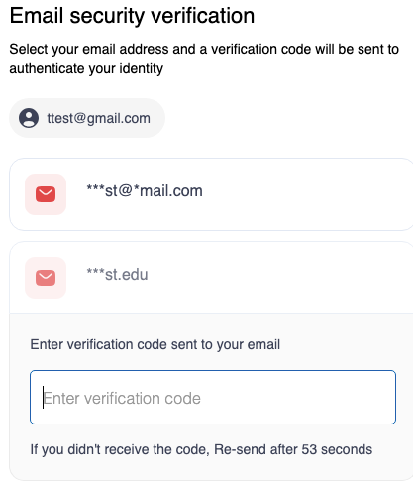
Once you select either option, please follow the verification process. If you have any issues, please contact helpdesk@nl.edu for further assistance.
Guide Download: Forgot Username Guide
Unlock Your Account
Unlock Your Account
-
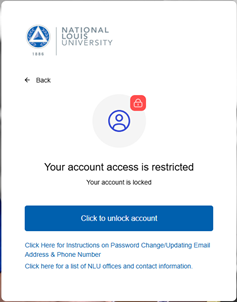
NLU Portal: Go to my.nl.edu and log in. If your account is locked, you will receive a “Your account access is restricted” error. Click on “Click to unlock account”
-
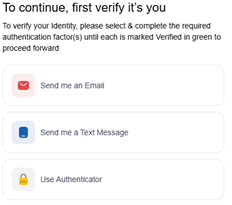
Verification Code: You can choose where you would like a verification code to be sent. Click on the preferred method.
-
Reset: Once you have chosen your preferred method, a verification code will be sent to that email. You will need to provide the code and click on “Submit.”
-
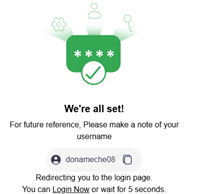
Log In: Once you type in the MFA code, your account will be unlocked and you will be redirected back to the login page. You may now log in with your unlocked account.
-
Reach out: If you encounter any issues, contact helpdesk@nl.edu; we will gladly assist.
Update Recovery Information
Updating Email Recovery Through My Services
-
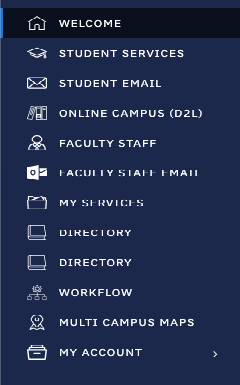
To update your email and phone number through my services, please log in to the portal and navigate to the “My services” page.
-
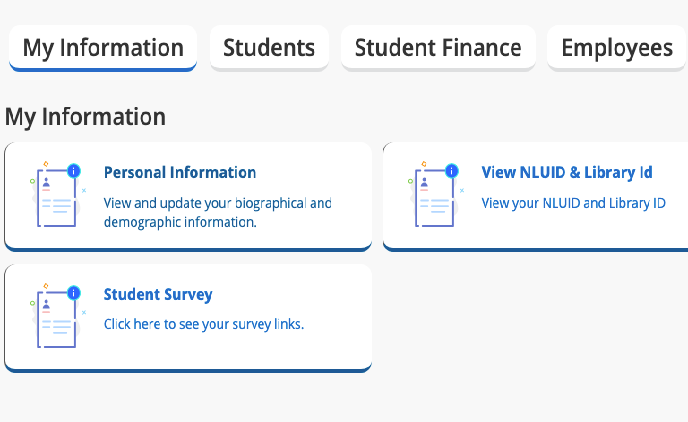
You will then see a personal information category. Go ahead and click on that section.
-
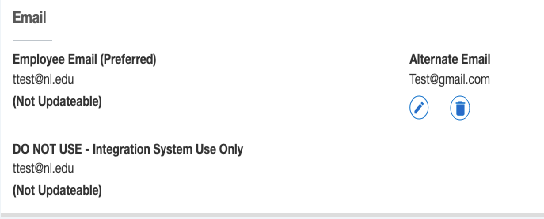
Under the Email category, you will see all the emails listed. In that section, you will see an “Add new” icon on the top right. Select that and add the desired email you would like, once as an alternate email, and then add the same email as a personal email.
- Afterward, the email you entered should take 2-5 hours to be reflected in our system. To check, please navigate to the NLU portal and select the forgot password option. After inputting your username, you should see the email you listed. If you have any issues, please contact helpdesk@nl.edu for further assistance.
Guide: Update Recovery Email Guide
Updating Phone Number Through My Services
-
To update your email and phone number through my services, please log in to the portal and navigate to the “My services” page.
-
You will then see a personal information category. Go ahead and click on that section.
-
Under the phone number category, you will see the phone number listed. In that section, you should see an “Add new” icon, select that.
-
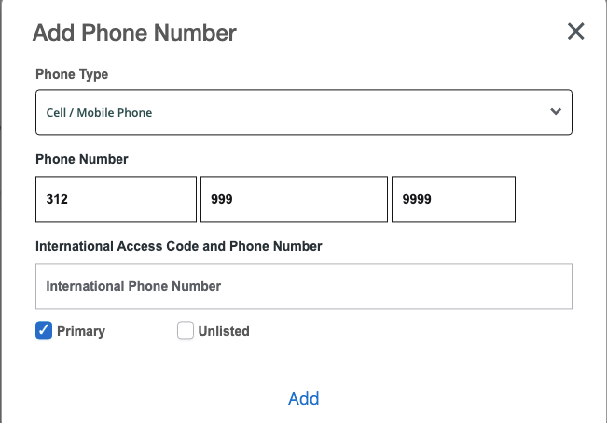
After that, you will see an “Add phone number” pop-up. Please select “Cell / Mobile Phone” for the phone type, enter the desired number, ensure “primary” is checked, and hit “add.”
-
It should take about 2-5 hours to reflect in our system. You can confirm it by navigating to the NLU portal and selecting the 'forgot password' >option. After inputting your username, you should see the email you listed. If you have any issues, please contact helpdesk@nl.edu for further assistance.
Guide Download: Update Recovery Phone Guide
Setting Up Google Authenticator for an Additional MFA Option for Office365 Logins and Password Resets
- Log into NLU Portal: https://my.nl.edu
-
On the menu to the left, click on Verify
- Re-enter your NLU Password
-
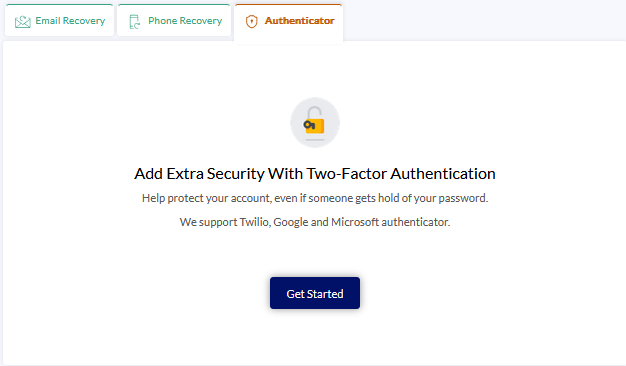
Click on the Authenticator tab, and select Get Started
- Click on Next
-
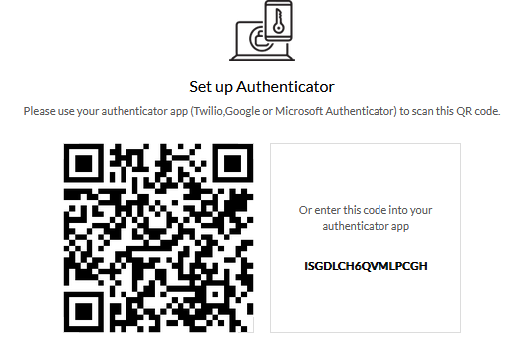
With the Google Authenticator App on your phone, scan the QR code on your screen
- Click Next
- Type in the code from the Authenticator App on your phone and click Register Authenticator
-
Once you set up your Google Authenticator, you will be able to select it as one of your 2-factor methods
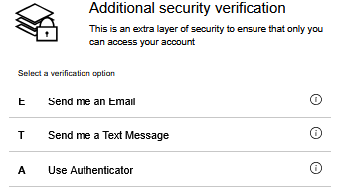
Guide Download: Google Authenticator Guide
