
A Widget Gets Friendlier
The colorful "My Courses" widget in Brightspace by D2L provides a bit of information about the courses you are enrolled in that are currently available to you, as well as navigation to those courses. Some of the language used in the widget was, however, a bit misleading. We have modified that language to better fit NLU's use of the Brightspace Learning Environment.
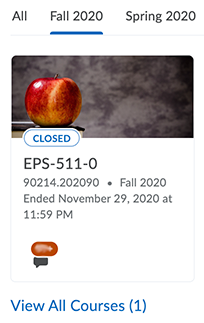
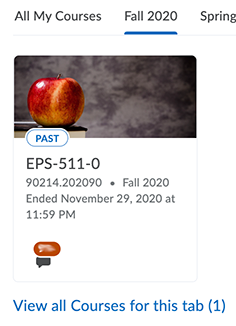
"Closed" becomes "Past"
At NLU, students can access any course they see in "My Courses". The "Closed" badge on courses that had reached their end date, however, led some people to think that past courses were not available to students. Previously, we reminded students that "If you see it, you can click it!" Now, we can do better. The badge displayed by past courses now says "Past". It is still true that if you see it, you can click it. Hopefully, that will now be more intuitive.
"All" in different contexts
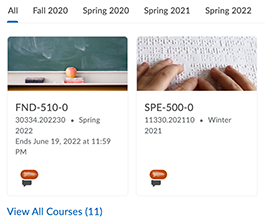
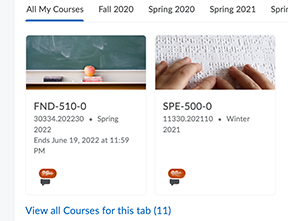
Sometimes it could be confusing to click "View All Courses", because you still just saw the same academic term that you were looking at before. To really see all the courses that you had access to, you needed to go to the "All" tab, We've tried to make each "all" designation a bit clearer. To see all the courses that belong to a tab, such as the Spring 2022 tab, that you are viewing, you now click "View all Courses for this tab". To choose the tab that has all the courses you can access, navigate to the "All My Courses" tab.
What didn't change?
The alphabet!
The order of the tabs for academic terms, left to right, is determined by the alphabetical order of the names of the term. So all Fall terms are to the left of all Spring terms, which are to the left of all Summer terms, which are to the left of all Winter terms. Within the collection of Fall terms, for example, "Fall 2020" would be to the left of "Fall 2021", which would be to the left of "Fall 2022".
If you see it, you can click it!
Yep, still true! Students can click a tile and enter a past, present, or future course that is currently active.
-- Your LITS Team
