
New Functionality in Announcements
Brightspace by D2L has recently incorporated some oft-requested upgrades into the Announcements tool. You may find these useful as you begin your spring courses. Additionally, we have a timely reminder: "X-ing out" an announcement does not hide it from students—it merely removes it from your own view of the Announcements widget.
Email it to your students!
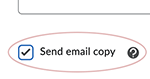
When you create a new Announcement, or edit an existing one, you can now check a box that will email the announcement to students. Keep in mind that if students have subscribed to receive email notifications of announcements, this could result in them receiving a second email.
Copy an announcement to another course—from the announcement!
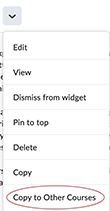
Instructors who teach multiple courses, or multiple sections of the same course, sometimes have an announcement in one course they would like to reuse in other courses. Before, the only way to do this was to go into each recipient course and do an import/export/copy job for selected items. Now, from the listing of an announcement in the widget or on the Announcements page, you can choose "Copy to Other Courses" from the announcement's action menu. This takes you to an interface for searching and choosing destination courses. On that page, you also can choose whether the copied announcements should be published on arrival, or whether it should arrive in draft form so it can be reviewed or customized before individually publishing yours.
Note: you must also be enrolled in the D2L destination course(s) in a role that allows you to copy into it, such as instructor.
What attributes of announcements copied in this new way are carried into the destination courses?
Attributes That Are Copied
- Headline display
- Author information
- Content including associated files, such as inserted images
- Start and end date. Start and end dates are not automatically offset. Dates remain the same as in the original course and must be edited in the destination course.
- Attachments
- Pin State
Attributes That Are Not Copied
- Assignments
- Quick links to activities
- LTI release conditions
- Send Email Copy settings
The Tricky "X"
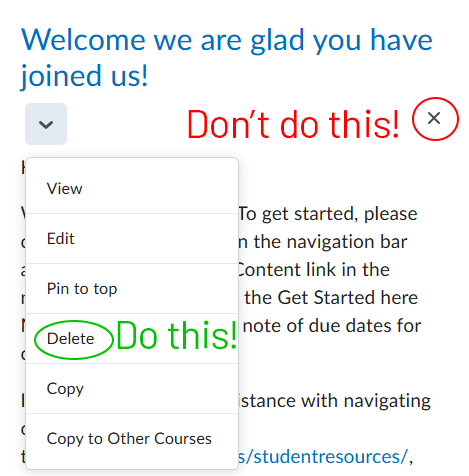
Did you know? Quite a few students call the helpdesk near term start complaining that they are in an old course, because of persistent announcements that were copied into the new term from an older course. When we reach out, the instructors for such courses are incredulous, because they do not see the announcement.
Here's what happens: If you "X out" an Announcement, D2L hides that announcement from your own view of the Announcements widget, but it does not hide it from students, who can still see it. Selecting "Dismiss from the widget" in the action menu for the announcement does the same unhelpful thing.
What should you do instead? Here are two ways to make an outdated or otherwise unwanted announcement go away for your students:
- Add or update the expiration date, which stops students from seeing the announcement after that date-time.
- Or, in the action menu of an announcement in the announcements widget or on the main Announcements page, choose "delete". Note that deleted announcements can be restored at a later time if you need. Just go to the main Announcements page and use the "More Actions" menu to "Restore".
—Your LITS Team
