
Quiz Timing - Instructors
Instructors and designers in the D2L Community have long requested improvements to quiz timing. D2L has responded by completely redesigning how quiz timing works.
Overview
A recent release updates the Quiz Creation experience for instructors by moving all instructors to the previously "opt-out" New Quiz Creation Experience. The New Experience, combined with the even newer updates to quiz timing functionality, simplifies the workflow for setting up quiz timing, adds useful new timing features, including the ability to auto-submit, and removes obsolete quiz settings and timing options. Additionally, both Asynchronous and Synchronous quizzes can now be set up.
The timing updates also includesimprovements to the quiz-taking experience. Students can show or hide the timer, receive time warning messages, and access more information about their quizzes.
Instructor Workflow Changes
The following workflow changes and advanced Quiz Timing options are now available for instructors.
- The updated settings allow instructors to choose if they want to set a time limit by selecting the Set time limit checkbox, which is cleared by default. If Set time limit is selected, instructors can add a Time Limit and edit the Timer Settings.
- The previous Prevent the student from making further changes option has been changed to Automatically submit the quiz attempt. Quiz auto-submission automatically hands in quizzes on enforced time limit quizzes at the end of the set time, improving quiz integrity. This behavior is changed on all existing and in-progress quizzes with the update.
Note: The Automatically submit the quiz attempt option is now the default setting for all newly created quizzes with a time limit and is used automatically if the instructor does not edit the quiz timing settings. The previous default setting was Allow the student to continue working. - The previous Allow the student to continue working option has been changed to Flag the attempt as exceeded time limit and allow the learner to continue working. This behavior is changed on all existing and in-progress quizzes with the update.
- The traditional asynchronous quiz, which starts the timer from the student's start time within a date-time window and ends according to the time limit. The new synchronous quiz option starts the timer from the same start time for everyone, and ends it at the same time for everyone.
What happens in existing Quizzes?
|
Quiz Timing Change |
Behavior before the Update |
Behavior after the Update |
|---|---|---|
| Grace Period (available in the Quiz Time Settings) | Learners have the Quiz Time Limit + Grace Period. | The Grace Period is being deprecated. Learners have the Quiz time limit only to take the quiz. |
| Time Limit Exceeded – Allow learner to continue working, but score 0 | Learners that continue after the time limit expires receive 0. | Changes to the auto-submit mean that the quiz is automatically submitted at the end of the time limit. |
| Time Limit Exceeded – Prevent learner from continuing | At the end of the Time Limit, the quiz attempt remains unsubmitted (the learner is prevented from further quiz entry). | Changes to the auto-submit mean that the quiz is automatically submitted at the end of the time limit. |
| Learner timer warnings during the Quiz | The learner did not have time warnings. | The new Timer Warnings mean that the learners now have time warnings. |
| Show/Hide clock during the Quiz | Learner could not hide the quiz timer. | The new Show/Hide clock feature means that learners can hide the quiz timer. |
| Special access has new timing options. | Timing adjustments were made by adjusting date/time parameters. | All new features and functions have counterparts in special access. Additionally, timing adjustments may be made by eitherNew Time Limit (in minutes), or by a Multiplier (such as time-and-a-half: 1.5), or by the additional Minutes to give. Adjusting one of these parameters affects them all, they each describe the same timing adjustment. |
| Quiz information link availability during the quiz | Learners had to exit the quiz to view the Quiz information provided on the Quiz start page. | A new link is available to access Quiz information on the Quiz start page during the quiz. |
| Both Asychronous and Synchronous Quizzes are supported | There were only asychronous quizzes previously. | The new addition of a synchronous quizzing option enables instructors to set up a quiz where the quiz timer starts on the start date-time for all learners rather than when the learner launches the quiz (asynchronous). The quiz timer then ends for all learners at the same time. |
Special Access
All quiz features and functions have counterparts in special access.
Step-by-Step Special Access
- As usual in the New Quiz Creation Experience, you will find Special Access in the "Dates and Availability" panel on the right side of the main edit screen. Click "Manage Special Access".
- Usually, you will keep the default "Allow selected users special access to this quiz", and then click "Add users to special access".
- On the "Special Access" page you will see settings that can be adjusted for "Special Access" users. You will also see a list of students to choose from lower in the page.
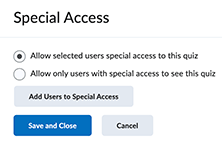
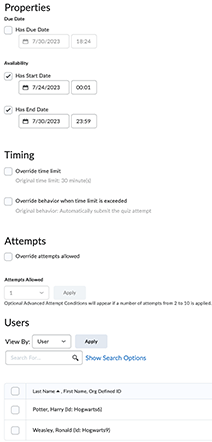 You will select one or more types of access to give; the exact options you see on the page will depend both on existing class-level settings pulled from both "Dates and Availability" and from "Timing and Display". Remember, the settings on the "Special Access" page are ONLY for the students added to "Special Access".
- Make your selections of settings and student(s).
- Save your selections.
- You will be returned to the first Special Access page. "Save and Close" that page.
- Be sure to save changes (either "Save" or "Save and Close") at the top level of the Quiz create/edit interface for your quiz.
Quiz Special Access Tips
- As you make choices and changes, additional access options may appear or disappear.
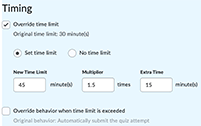
- Timing adjustments may be made either by providing a New Time Limit (in minutes), or by a entering a Multiplier (such as 1.5x in the picture below), or by entering additional Minutes to apply. Adjusting one of these paremeters affects all three of the time adjustment fields acordingly; they all describe the exact same timing adjustment of the same Quiz time.
Synchronous Quizzes
While most online and blended courses will continue to use the traditional "asynchronous" quiz, there may be programs that have a special use for synchronous quizzes, where all students start and stop at the same time. To learn more about synchronous quizzes and how to set them up, please view the excellent summary of the Phase 3 Pilot of this feature. (NU took part in the pilot on our D2L test site, which allows us to make synchronous quizzes available in production, in time for fall planning and development.)
 How to Create a Synchronous Quiz
- Create a new quiz or edit an existing one.
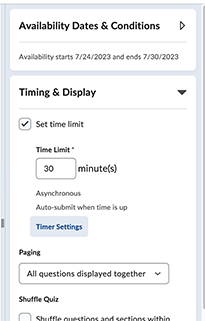
- Set the "Start" date-time for your quiz in "Availability Dates and Conditions"
- On the Quiz Creation screen, click to expand "Timing & Display".
- Check "Set time limit", then enter a Time Limit in minutes.
- Click "Edit Timer Settings".
- In the "Timing" dialog, under "Quiz Start", select "Synchronous: Timer starts on the start date".
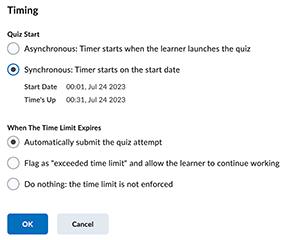
Note about dates: If there is no Start time and date set for the synchronous quiz, a "No start date set alert" appears under the radio button option and you are not able to save the quiz. Due date is disabled for synchronous quizzes.
One caveat: You cannot, at this time, have different timings, synchronous or otherwise, for a single quiz in different sections of a cross-listed course. That may be coming in the future, but for now, you will need a different solution, such as two quizzes, each with the timing needed for a specific class section, and selective release based on section.
Improvements for Students
There are two significant student-facing improvments in the quiz tool.
- Students can chose to hide/show the timer. And the instructor no longer has to make that choice for the entire class!
- The Quiz Information from the quiz start page is also available as a link while taking the quiz, so that the student does not have to exit the quiz to see it.
For more information on these student-facing improvements, please see the "Quiz Improvement (Students)" blog.
References and Resources
- Knowledge, D. (2023). July 2023/20.23.7. Brightspace. https://community.d2l.com/brightspace/kb/articles/18935-july-2023-20-23-7#quizzes-quiz-timing-improvements-featuring-auto-submission-updated
- Maryna.Z. (2023). QUIZ Timing Improvements - Pilot Summary. Brightspace. https://community.d2l.com/brightspace/kb/articles/6098-quiz-timing-improvements
- Maryna.Z. (2023). QUIZ Timing Improvements Dev Pilot - Phase 3 of 3. Brightspace. https://community.d2l.com/brightspace/kb/articles/16758-quiz-timing-improvements-dev-pilot-phase-3-of-3
